Step 4 - Back up and restore
Important: RelaySMS stores your saved platforms on your device. If you delete the app or switch phones, you can lose them. Back up regularly.
Backups are end-to-end encrypted and saved to a folder on your device. To restore one, you need the backup file and its recovery key.
Back up
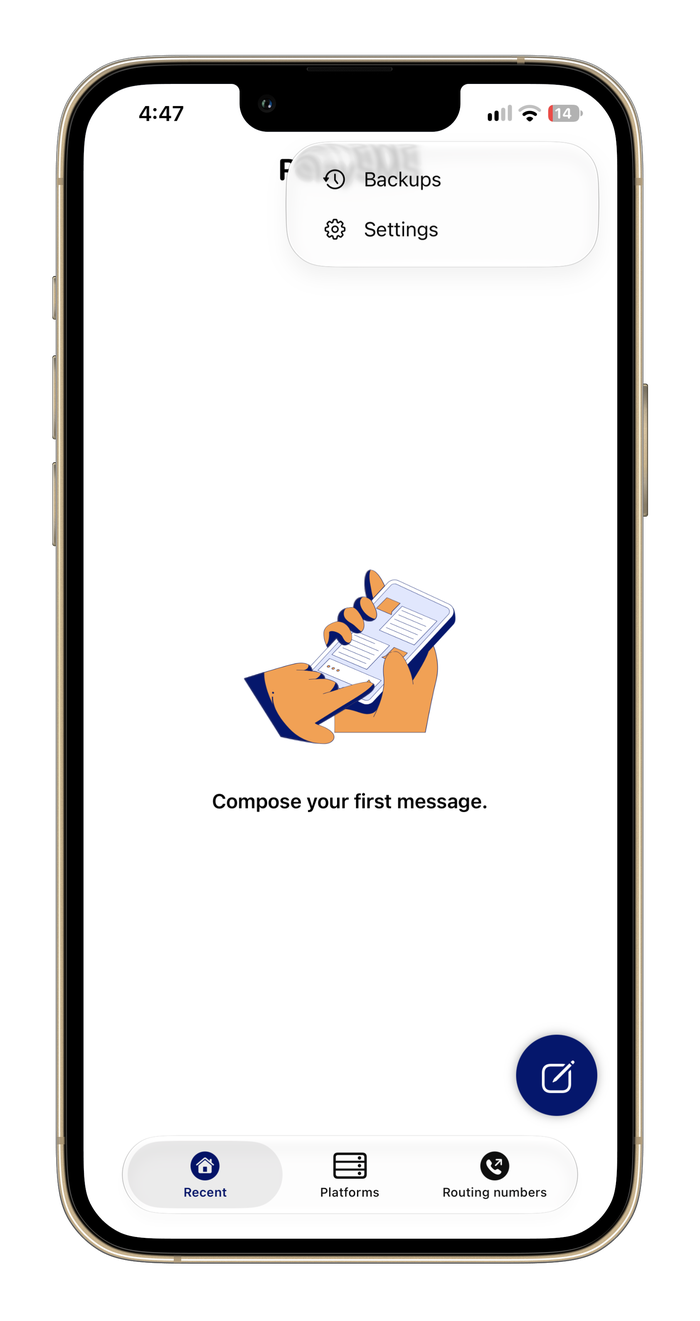
- Tap the ... menu (top right corner of the home screen).
- Tap Backups.
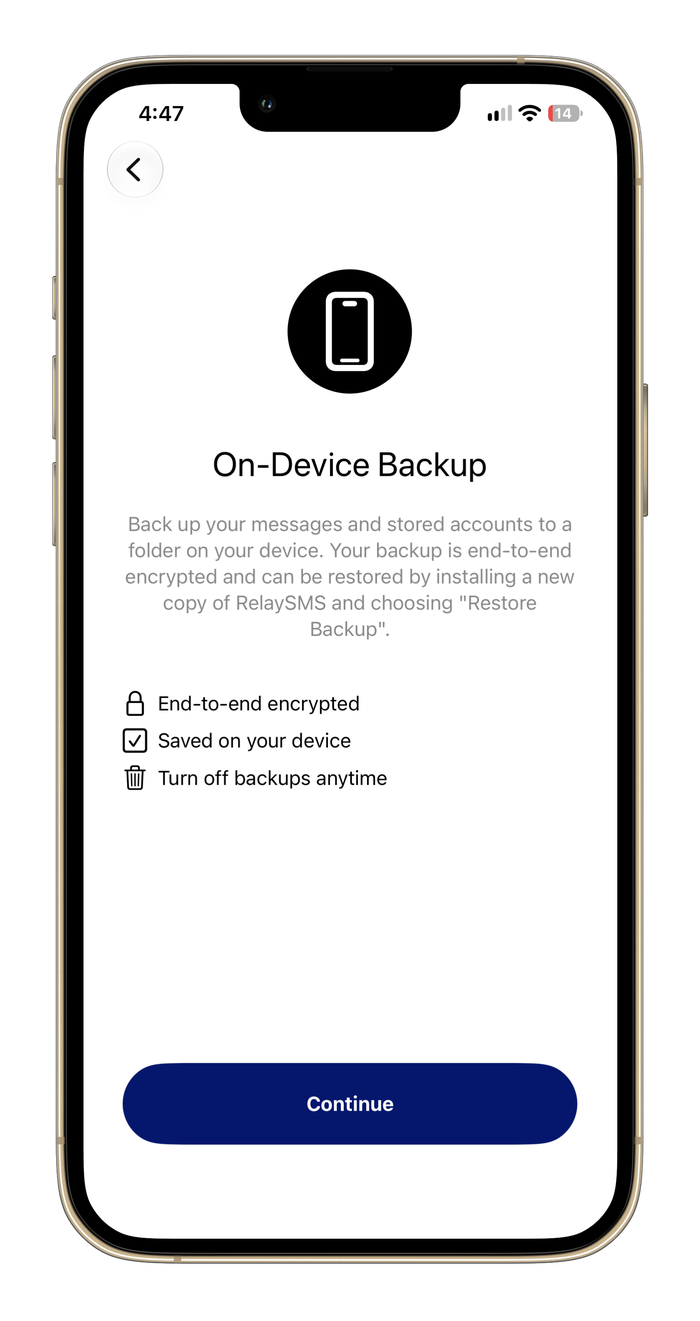
- Read about on-device backups and tap Continue.
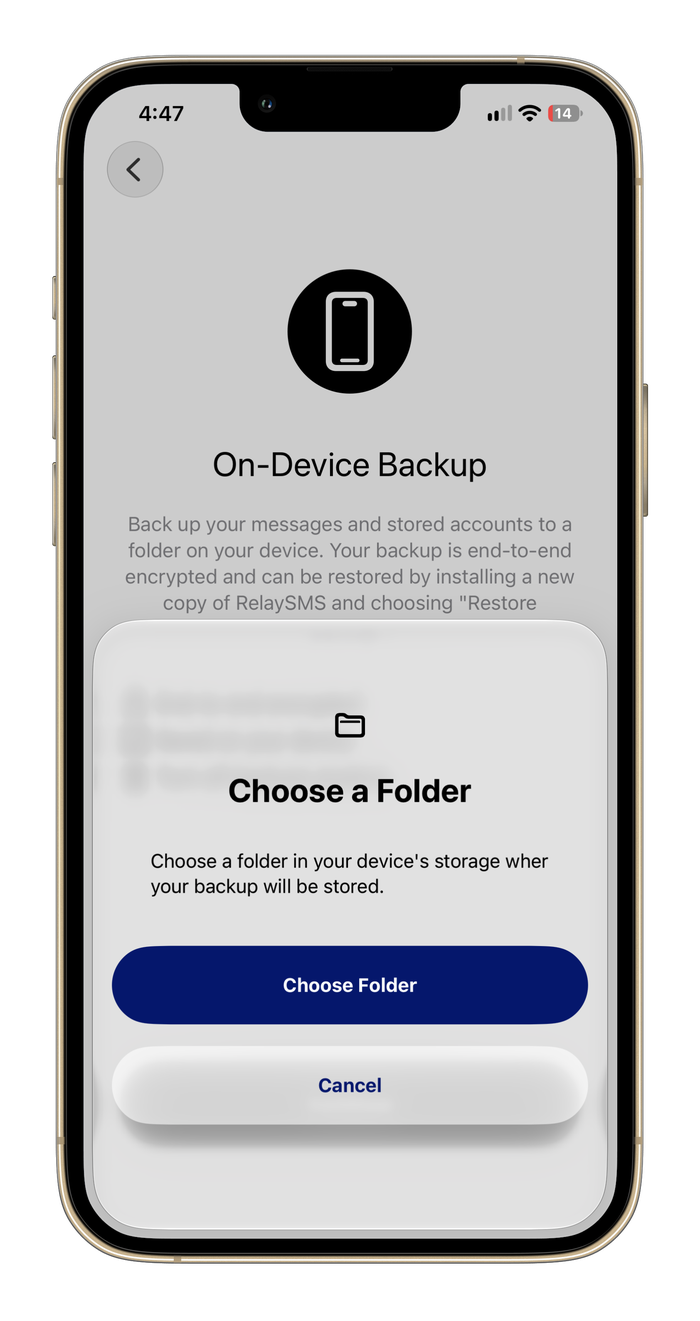
- Tap Choose Folder and pick where your backup will be stored.
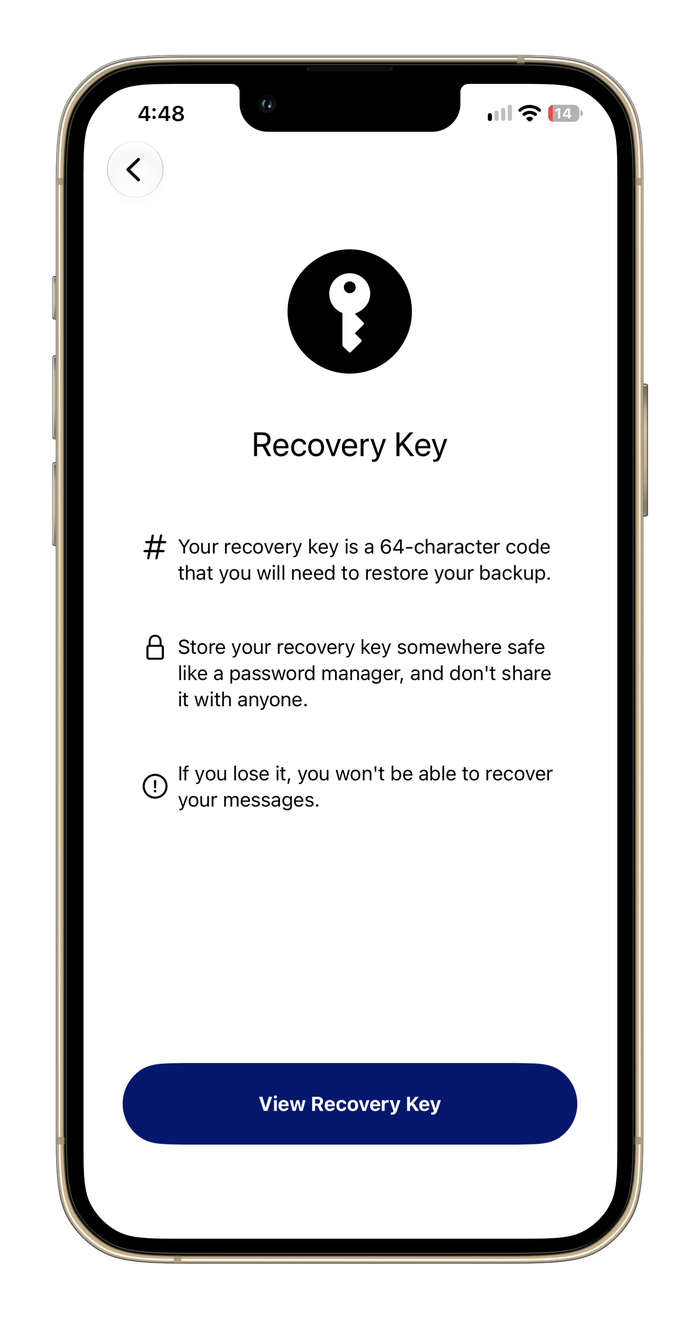
- Tap View Recovery Key.
- Copy your 64-character recovery key and store it somewhere safe, like a password manager. Don't share it with anyone.
- Tap Continue.
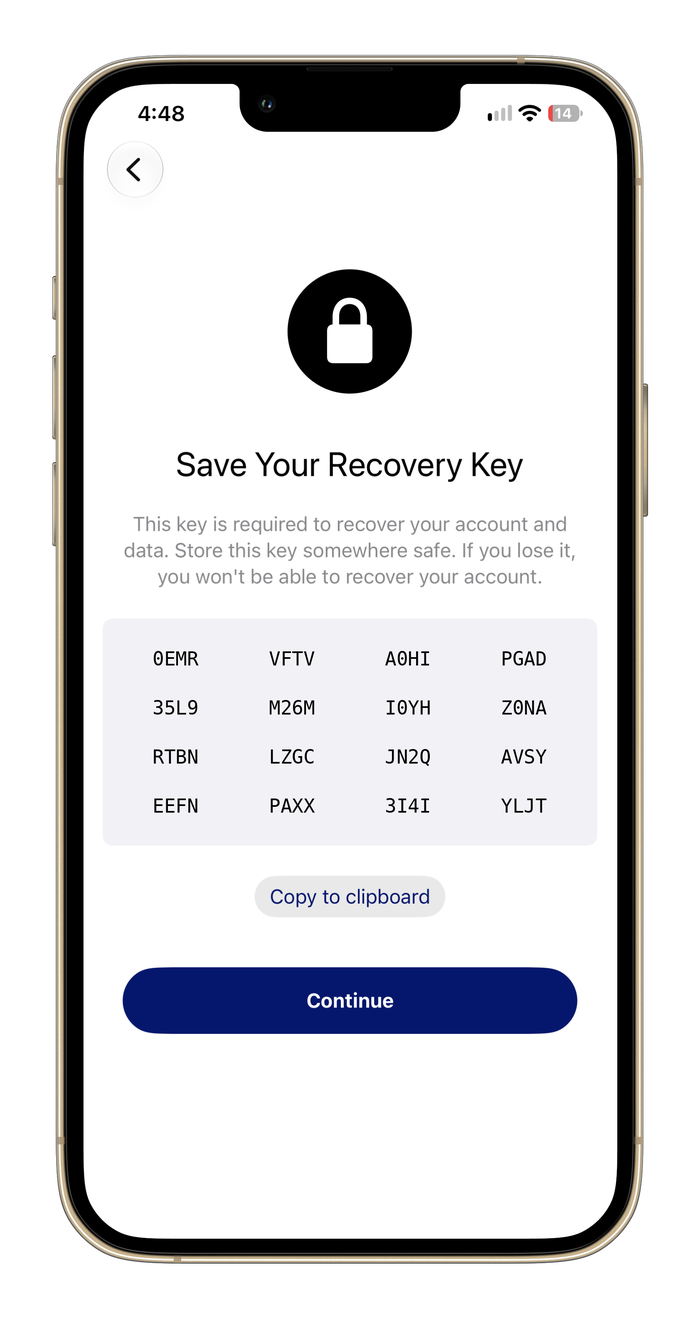
If you lose your recovery key, you won't be able to restore your backup.
Manage your backup
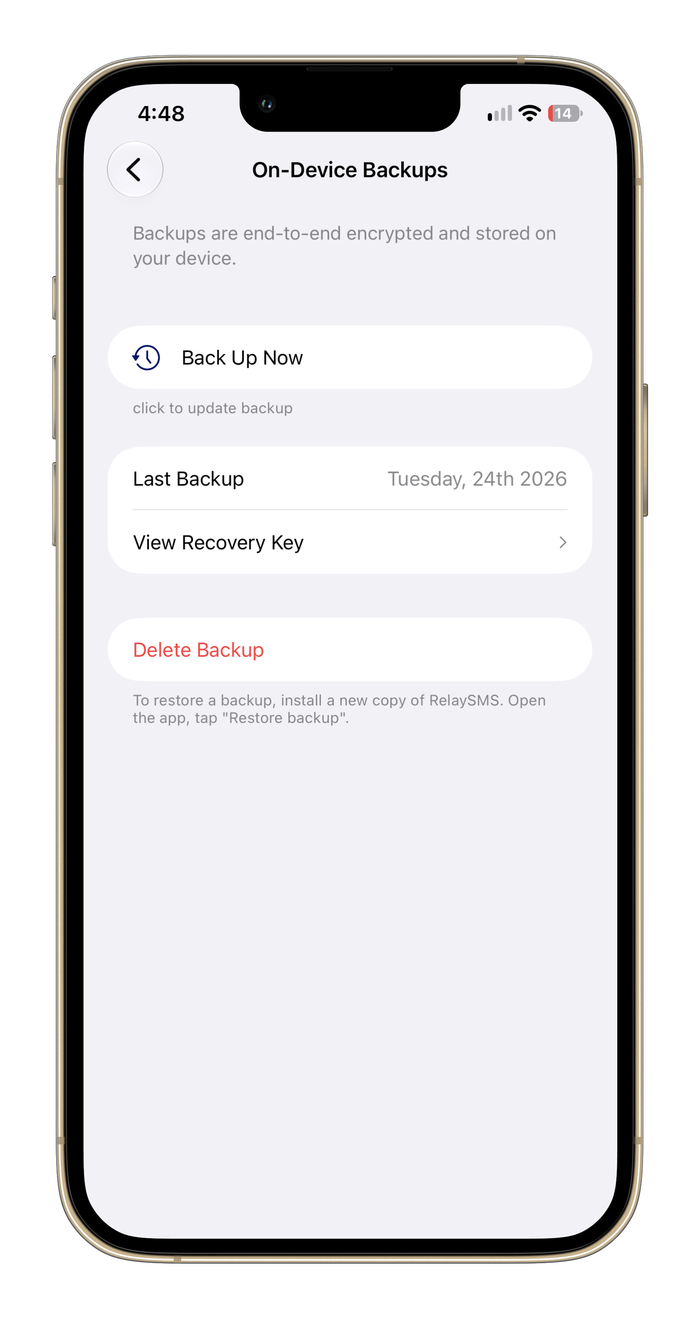
- Tap the ... menu, then Backups.
- From here you can:
- Tap Back Up Now to update your backup.
- See the date of your Last Backup.
- Tap View Recovery Key to see your key again.
- Tap Delete Backup to remove it.
Restore
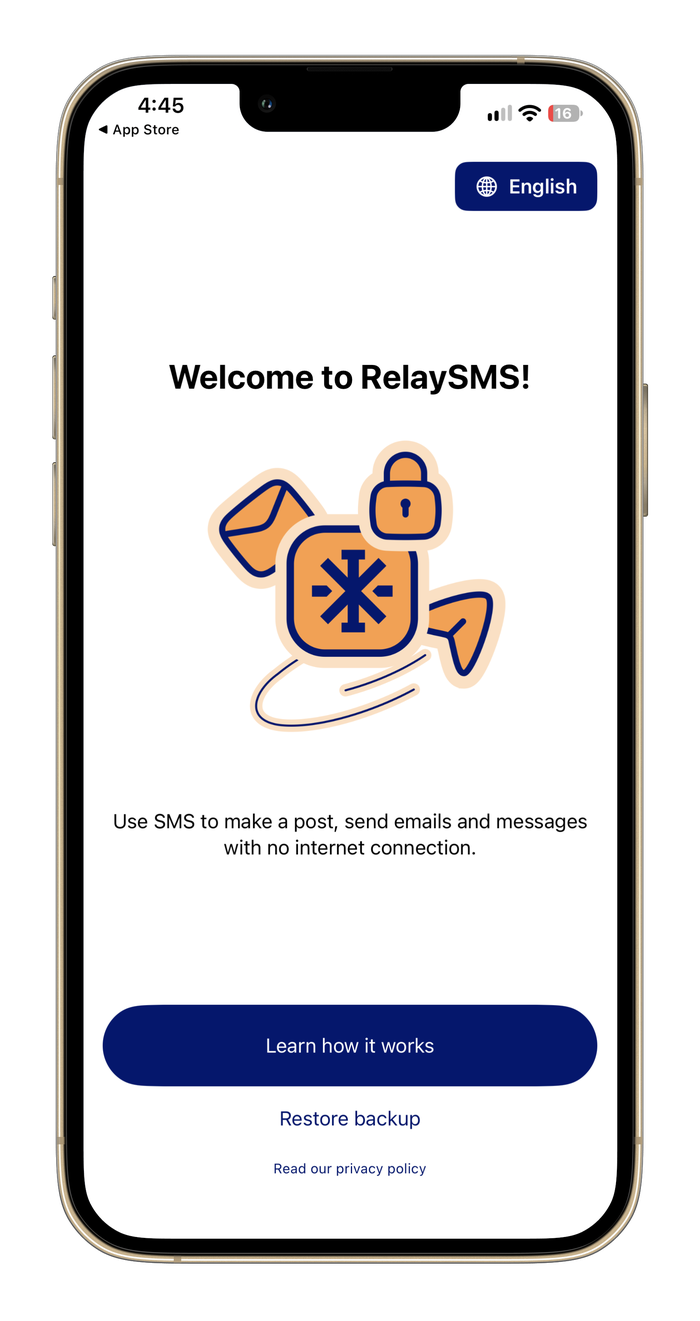
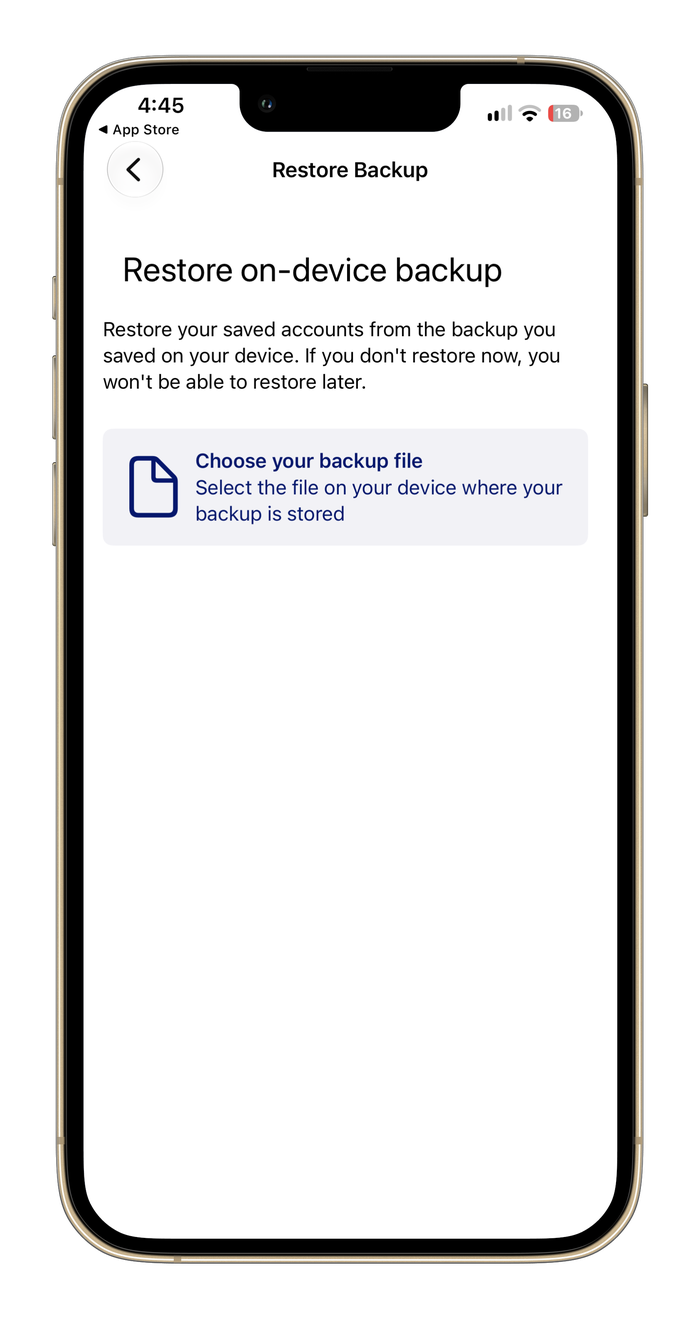
Important: You can only restore a backup on the welcome screen during onboarding. If you don't restore then, you won't be able to restore later.
- Install a new copy of RelaySMS and open it.
- On the welcome screen, tap Restore backup.
- Tap Choose your backup file.
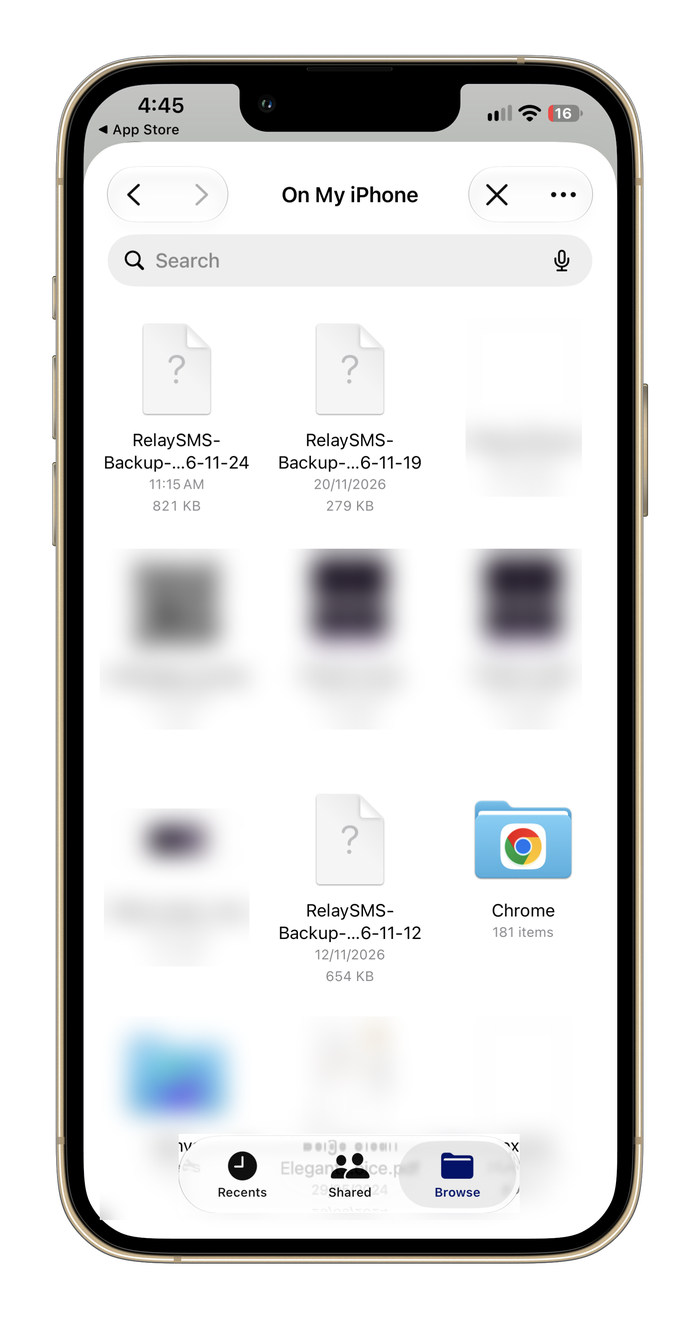
- Find and select your backup file. It is named RelaySMS-Backup followed by the date.
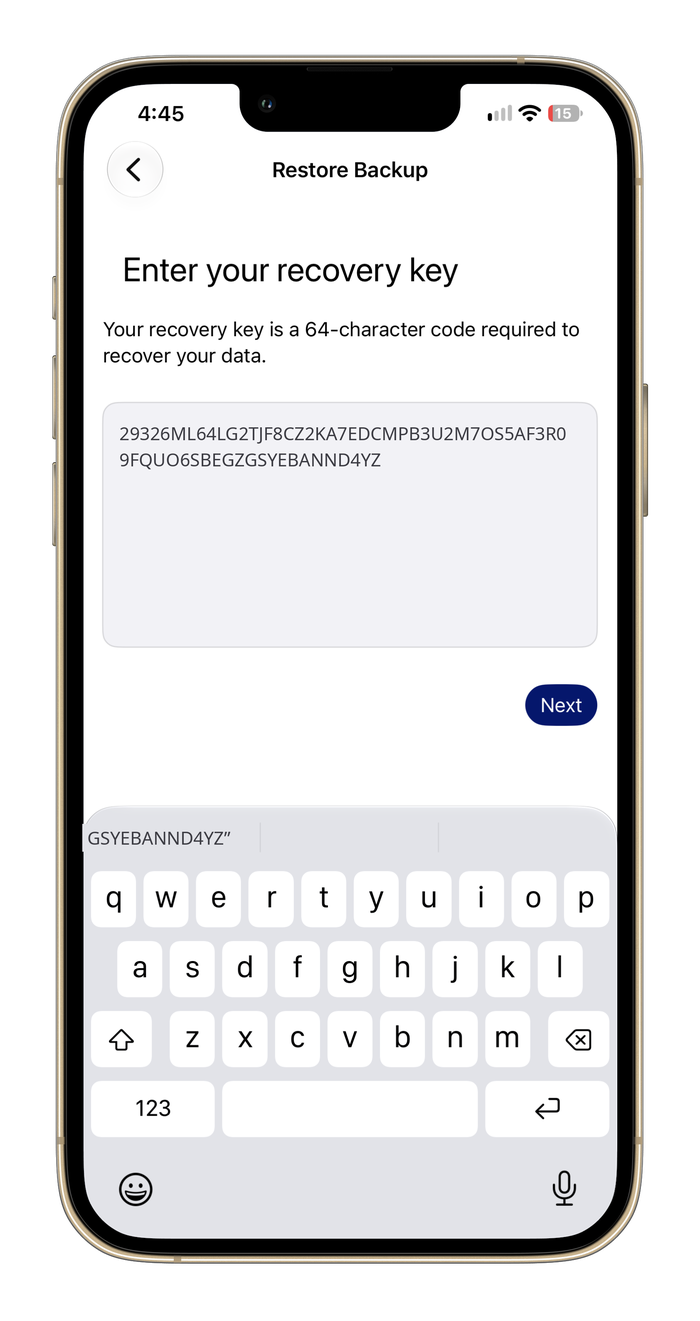
- Enter your recovery key.
- Tap Next. Your platforms are restored.